From hello to saved contact.
How ordering works, how people open your card on iPhone and Android, and the six ways to share your profile.
- No app needed
- iPhone & Android
- Update anytime
- Pouch included
Six steps to your first tap.
Choose your card
Browse the shop or tell us what you need — NFC, metal, Google review card or stand, Instagram or WhatsApp card, digital card or a team setup.
Order online or on WhatsApp
Use the order form, send your details on WhatsApp — or design your card in the live designer and send it.
Confirm price & design
We confirm the final price (including bulk pricing), plan terms and design with you before you pay.
We set up your profile
Your ElitezCard profile is built with the buttons and sections you need.
Receive card + pouch
Your card arrives with its NFC-secured protective pouch. Delivery charges are additional and confirmed when you order.
Tap, share & update
Start sharing. Edit your profile whenever something changes — the card stays the same.
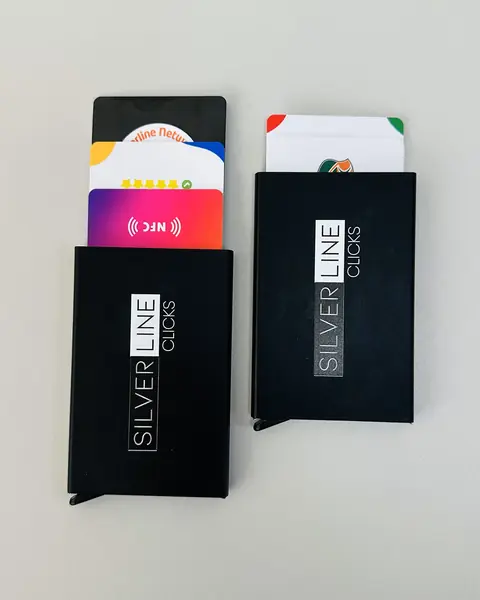
NFC-secured pouch included
Every ElitezCard NFC business card (PVC or metal) comes with a protective pouch that keeps it safe in your wallet or pocket.
Tapping on iPhone & Android.
iPhone
- Wake or unlock the screen.
- Hold the card near the top back edge.
- Tap the notification.
Automatic on iPhone XS, XR and newer. Older iPhones: scan the QR code.
Android
- Settings → search NFC → on.
- Unlock the phone.
- Hold the card near the middle of the back.
Thick or metal phone cases can block NFC. The QR code always works.
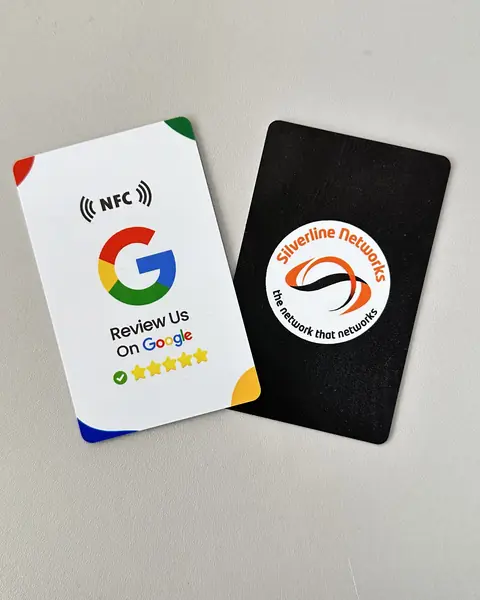
Six ways to share.
Questions, answered.
Short, direct answers about ElitezCard in the UAE. Can't find yours? Ask us on WhatsApp.
How do I tap an NFC card on iPhone?
How do I tap an NFC card on Android?
What if a phone has no NFC?
Can I edit my profile myself?
How do I order?
No matching questions — try another word or ask us on WhatsApp.
Ready to never reprint again?
One tap shares your details, you update them anytime, and you stop paying for boxes of paper cards. Order in a few messages on WhatsApp.